Setting Your Operator
Fast-Weigh Desktop Ticketing Application
Before you can begin ticketing, you need to make sure that you setup your Weighmaster or Operator name within the Desktop Ticketing Application.
Setting a New Operator

In order to set your Operator, you will need to click on the Operator icon on the top right of the Desktop Ticketing Application.
- Here, you can enter your Operator's Name, and click "Accept" to set them as the current Operator.

- If you are using a Signature Pad, you can also store a digital signature for your Operator.
- Click on the Settings button on the top right, then navigate to the Ticket tab. From there, set "Require Operator Signature" to yes to set a digital signature for the Operator.
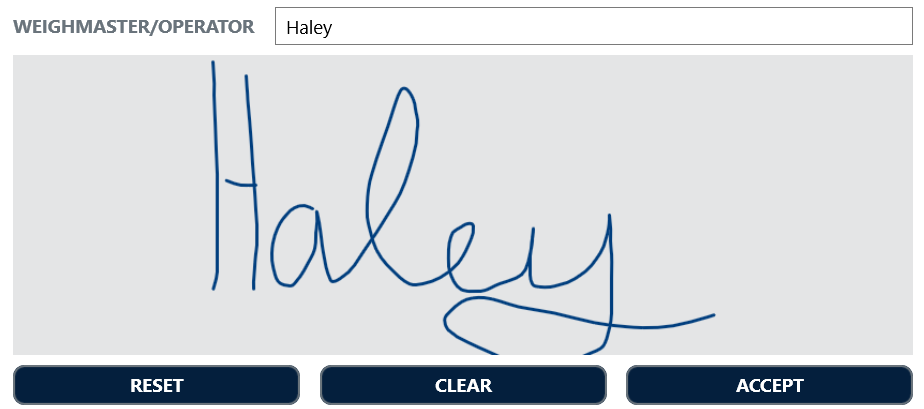
- Click on the Settings button on the top right, then navigate to the Ticket tab. From there, set "Require Operator Signature" to yes to set a digital signature for the Operator.
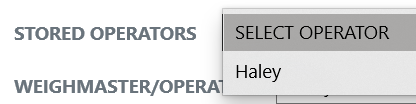
- You can also Save and Operator to the Stored Operators drop-down by clicking the "Save" button.
- When you Save your Operators, it makes switching between multiple Weighmasters easier, and allows for more accurate reporting.
- This will also save the digital signature, if you are using one.
Related Articles
Desktop Scale App Settings: Customizing your Ticketing App
Fast-Weigh Desktop Ticketing Application The settings for the Desktop Ticketing App can shape the way that your operations function. please contact us at support@tacinsight.com or call 865-219-2980 during business hours if you need assistance with ...Moving an Existing Device to a new PC
Fast-Weigh Desktop Ticketing Application You may need to move an existing Desktop Ticketing Device License to a new PC for any number of reasons. Swapping ticketing computers is a simple process with Fast-Weigh! If you have any questions about this ...Using Load-Out on the Desktop Ticketing Application
Fast-Weigh Desktop Ticketing Application To add the Load-Out module to your Fast-Weigh subscription, contact us at 865-219-2980 or support@tacinsight.com You can use the Load-Out module to track how long a truck is in the yard after taring in and ...Creating & Managing Orders on the Scale App
Fast-Weigh Desktop Ticketing Application You can create and manage Orders directly from the Scale App, if you have the Order Add/Update setting turned on. All of the Orders created for your location can be viewed and updated, or you can quickly add a ...Creating & Printing Tickets 🎥
Fast-Weigh Desktop Ticketing Application Using the Ticketing Screen on the Fast-Weigh Desktop Ticketing Application Click here for more Fast-Weigh training videos. Creating Tickets Since all of your information is synced from your Web Portal to your ...